SketchUp Textures: Finding and Applying Them Right
Where to find quality SketchUp textures, and how to apply them with the right scale, direction and resolution for realistic models and renders.
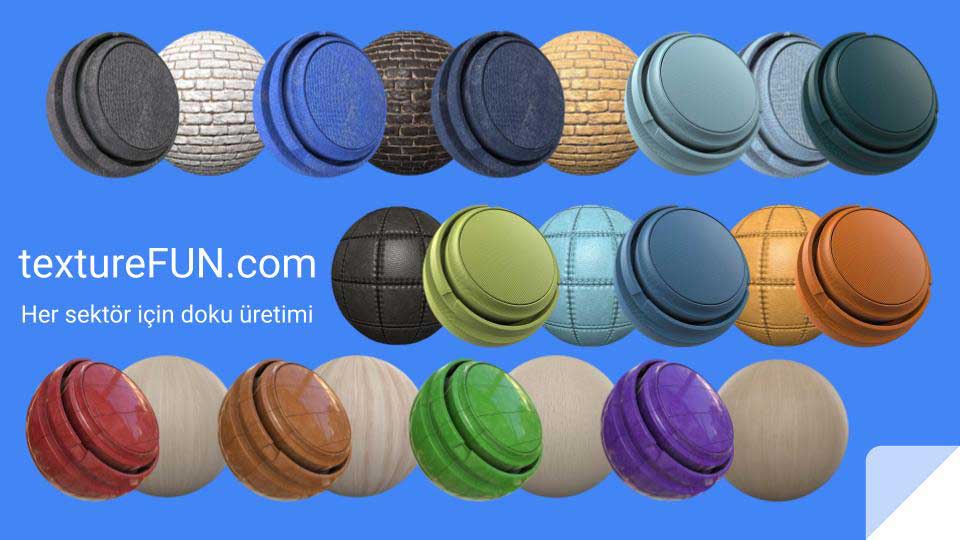
Creating and finding textures in SketchUp has always been a challenge for both new and experienced users.
On the topic of SketchUp textures (SketchUp Texture), today I want to tell you about texturefun.com and how to find and apply SketchUp textures well.
Producing textures for the industry is work that requires a high level of professionalism.
The people doing this work need to know materials and their classification very well.
I would like to say that the TextureFun team does this job very well.
They bring years of experience to their texture production.
What Does SketchUp TextureFun Do?
They produce textures for architecture, engineering, product-focused work and game developers.
In terms of quality, textures are produced in 1K – 2K – 4K resolution for every system and added to the site.
The textures are uploaded to textureFun.com for users to download.
Users can sign up easily and download them quickly.
Why Are Textures Produced?
Textures are used in every industry, and they are always a requirement for a high-quality presentation and visuals.
Professional programs are used for texture production.

Because simply taking a photo is not enough to make a texture.
For use in 3D programs, images obtained from manufacturers are brought to the right dimensions, hours are spent on key properties such as color, contrast and size, and they are divided into sections for appropriate use.
Once they are organized this way, the textures are uploaded to textureFun.com. Users download them and use them in their own work.
TextureFun.com is a website offering free textures for SketchUp users. The site offers high-quality, free textures in hundreds of categories that can be used in fields such as architectural visualization, interior design, furniture design and 3D modeling. Users can download textures from the site and use them with SketchUp. The site also offers SketchUp lessons and tutorials.
What to Watch for When Applying Textures in SketchUp
Finding a good SketchUp texture is only the first step; applying it correctly in the model matters just as much. Even a high-resolution texture can make an image look artificial if it is used at the wrong scale or in the wrong direction. Paying attention to the following points noticeably improves your SketchUp texturing work:
- Enter the real-world size: When applying a parquet or ceramic texture, use the material’s real dimensions (for example, the tile size) as a reference. Wrong scale is the first error viewers notice.
- Check the direction: Wood grain and flooring layouts should match the way the surface is used. You can adjust the direction and starting point with the texture positioning tools.
- Reduce visible repetition: On large surfaces, an obviously repeating pattern looks artificial. Seamless textures and subtle color variations reduce this problem.
- Choose resolution by use: High-resolution textures are needed on surfaces close to the camera, while lower-resolution textures are enough for distant surfaces. This keeps file size and program performance in check.
Keeping Your Texture Library Organized
As projects grow, downloaded textures multiply quickly. Sorting textures into folders by material type (wood, stone, metal, fabric, flooring) and giving them clear names makes it easier to find what you need in later projects. Regularly purging unused materials from the model also keeps the file from growing unnecessarily. If you work with a render engine, keeping the bump and roughness maps (if available) in the same folder as the color texture saves time when you rebuild the material.
How texture and light interact
The same texture can look very different under different lighting conditions. So rather than judging a texture only by how it looks in the SketchUp viewport, it helps to do a quick test in the render environment you will use. Very dark or oversaturated textures can look heavier than expected after rendering; if needed, slightly lightening the color and reducing saturation gives a more balanced result.
Making sure textures on neighboring surfaces work together in tone also helps the space look cohesive.
Frequently Asked Questions
Is a SketchUp texture the same as a material in a render engine?
A texture in SketchUp defines the color image of a surface. Render engines add physical properties on top of that texture, such as reflection, roughness and bump. That is why the same texture can look far more realistic in a render engine with additional settings.
How can I tell whether a texture is seamless?
If you apply the texture to a large surface, look at it from a distance and see no obvious lines or color jumps at the tile edges, the texture is most likely seamless.