SketchUp Diffusion AI Rendering Inside SketchUp
SketchUp Diffusion brings generative AI into SketchUp, turning a simple model and a text prompt into rendered concept images in seconds.

Bringing your creative vision into focus has never been easier. Our latest release, SketchUp Diffusion LABS, lets you harness the transformative power of AI inside SketchUp to produce rendered images in seconds. SketchUp Diffusion AI rendering means the future is here, and it looks like a more creative, more capable you.
In your day-to-day work, you probably need to communicate ideas quickly and clearly. With seemingly endless design possibilities, we face a balancing act between the time spent designing and the time spent creating representative images that showcase our best, most creative solutions.
SketchUp Diffusion AI Rendering
Artificial intelligence has the power to expand your creative capacity and unlock new potential. We are committed to encouraging innovation and making AI accessible wherever we see its potential to make our work better.
While AI has no creative vision of its own, it can help you focus on yours. Newly released in SketchUp Labs, Diffusion brings easy-to-use generative AI into SketchUp, offering a new way to quickly create images that inspire your creative process and support your design storytelling.
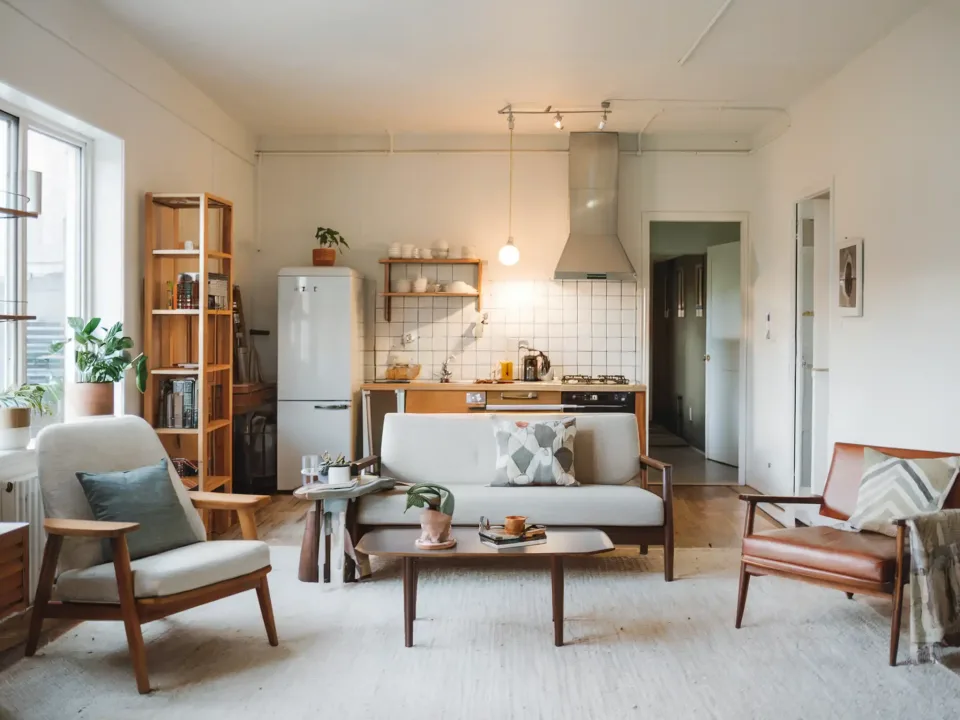
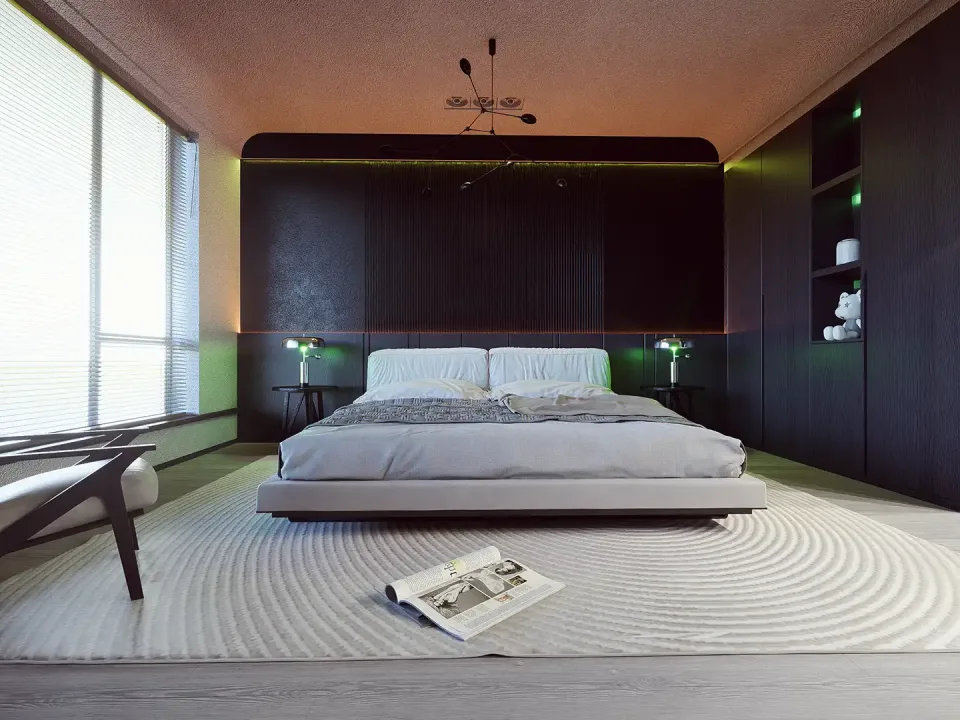
With a text prompt and a simple model, you can generate photorealistic or stylized images to illustrate your distinct idea.
Instead of hunting for something similar to what you imagine and trying to explain to clients how your concept is “close, but a little different,” you can now capture your unique creation more precisely.
SketchUp AI Render
Sit back and let AI put new concepts in front of you.
Setting sliders let you decide how much influence your prompts have and how closely the generated images stick to your model.
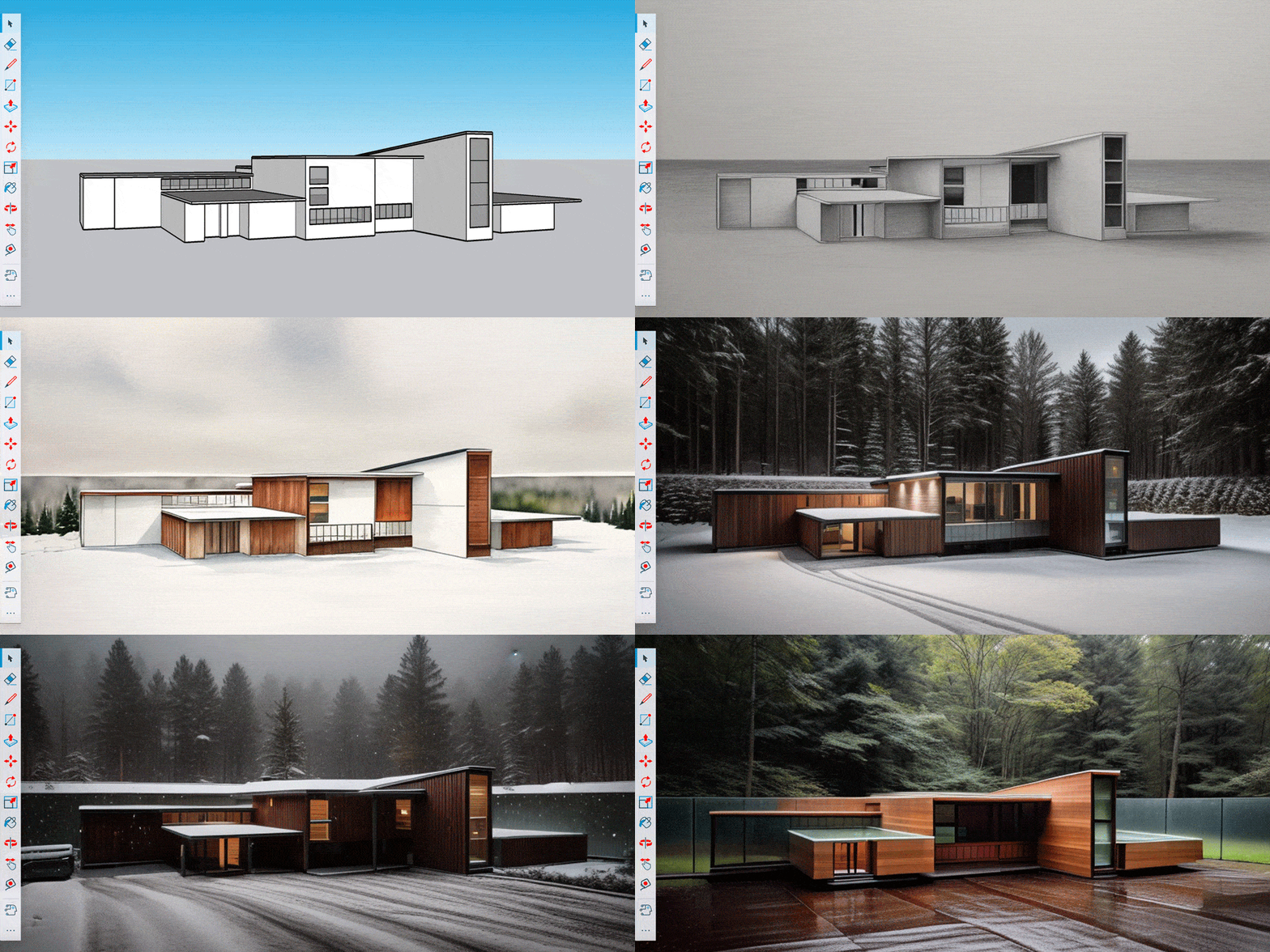
For example, say you have a basic massing model and want to generate some concepts for the project’s form and finish. Describe how you want the building to look with a text prompt, then experiment with the setting sliders. Increasing “Prompt influence” and turning down “Respect model geometry” will follow your text description closely but transform your model in the generated images, so you may see new elements that could inspire an entirely new direction.
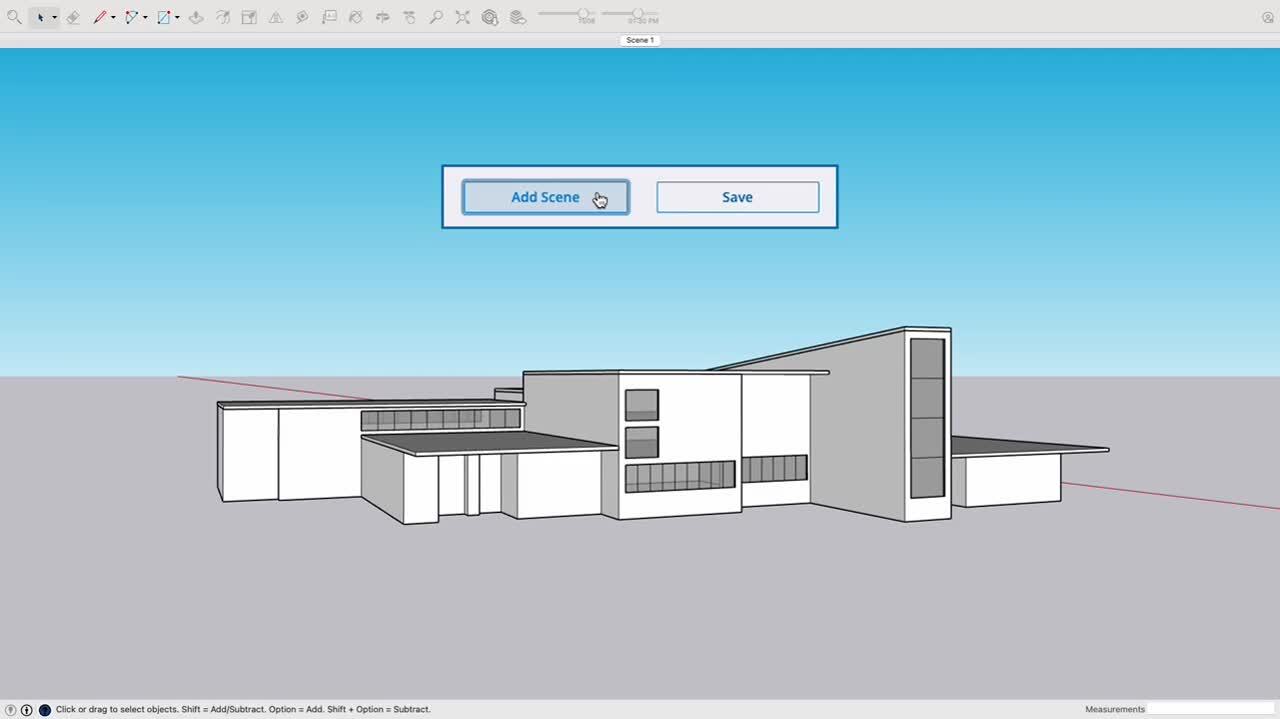
The settings work the other way too. If you have made progress on your model and want to explore things like context, lighting and materiality, turn on “Respect model geometry” to produce images that show your model with exactly the surfaces and context you defined.