Photoshop Landscape Elements and Why They Speed Up Site Plans
Download Photoshop landscape elements and follow a clear workflow for site plans, from ground and trees to shadows, color balance and seasons.
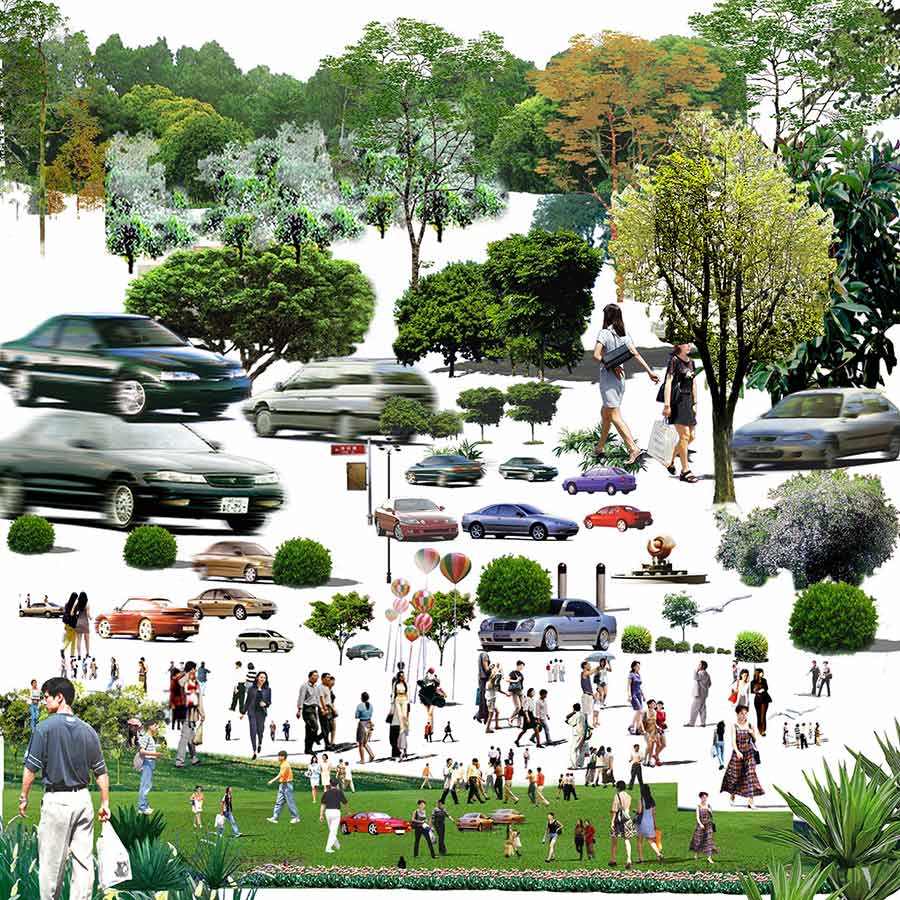
In large-scale projects, using Photoshop landscape elements makes placement easy and lets us paint large areas quickly in landscape projects.
Large landscape projects tend to cause lag and freezing, especially on laptops, so using these landscape elements in Photoshop gives you a big advantage.
Photoshop offers a number of advantages when used on large-scale landscape projects.
Here are some examples:
Why Use Photoshop Landscape Elements?
- Design and Visualization: Photoshop lets you create and visualize your landscape design digitally. You can combine photos, drawings and graphics to test ideas before the project, try different design options and see the result visually. This helps you better understand the look and feel of your project and present it to clients or stakeholders.
- Color and Material Selection: Photoshop helps you define the color palette and material selection for a landscape project. You can try different color combinations and simulate plant and material choices. This makes it easier to predict the final look of the project and how different options will appear.
- Lighting and Shading: Photoshop landscape work can be used to simulate the lighting and shading effects of your project. You can visualize how the project will look at different times of day or how it changes under different lighting scenarios. This helps you better understand the atmosphere and textures of the project.
- Detailing and Plant Placement: Photoshop can be used to simulate the plant species and arrangements in a landscape project. You can use digital layers to place and arrange plants, hedges, paths and other details. This helps you create a realistic visual presentation of the project and show how planting schemes or structures will look.
- Easy Changes and Editing: Photoshop gives you the flexibility to change and edit a landscape project easily. You can adjust details, colors, layers or components however you like. This lets you apply changes quickly during or at the end of the project and keep improving it.
[git url=”https://www.mediafire.com/file_premium/acrm0fse4fu9mkj/elements.rar/file” sn=”10″ text=”Default Download”]CLICK TO DOWNLOAD[/git]
Steps for Working with Landscape Elements in Photoshop
Photoshop landscape elements offer a fast, flexible way to work, especially on large-scale site plans and in post-render editing. However, placing elements at random can produce a cluttered image instead of a well-organized presentation. For more consistent results, it helps to work in this order:
- Prepare the base: Place the plan or render as the base layer and set the scale.
- Complete the ground: Paint large areas such as lawn, hardscape and water surfaces on separate layers.
- Place trees and plants: First build the main composition with large trees, then add detail with shrubs and ground cover.
- Add shadows: Giving every element a shadow in the same direction and with the same softness makes the image feel unified.
- Balance the colors: Use adjustment layers to match the tone and saturation of elements that come from different sources.
Layer Organization and Points to Watch
The number of layers grows quickly in landscape projects. Organizing layers into groups such as trees, shrubs, ground, shadows and people makes it easier to find what you need during revisions. Using elements as smart objects prevents image quality from degrading when you resize them. Also, when copying the same plant many times, slightly varying its size and orientation reduces the sense of repetition.
A common mistake is using elements photographed from different perspectives in the same scene. Using a side-view tree in a bird’s-eye plan, or adding a plant shot from above in an eye-level render, immediately catches the viewer’s eye. That is why it is important to choose elements that match the scene’s viewpoint and light direction.
Seasonal and atmospheric effects
In Photoshop landscape work, showing the same project in different seasons can make the presentation more powerful. Changing foliage colors with adjustment layers, highlighting plants in bloom, or using bare trees for a winter view shows how the landscape design will change throughout the year. When preparing variations like these, keeping the main layer structure intact and changing only the relevant layers lets you produce several presentation images quickly from the same file.
Frequently Asked Questions
Can Photoshop landscape elements replace 3D models?
For large-scale plans and background elements, they are often enough. However, for plants whose shadows fall on the building or that are very close to the camera, 3D models give a more realistic result.
How can I reduce Photoshop slowdowns with large files?
Saving finished layer groups as a merged copy, clearing unnecessary history states and choosing a working resolution that matches your output needs all improve performance.