Render Resolution for Print: Brochures, Billboards and Site Hoardings
How to choose render resolution for print: the pixel and DPI formula, brochures vs billboards, upscaling limits and what to ask your printer.

A render that looks stunning on screen can come back from the printer blurry, and on a construction site hoarding the pixels can jump out at you. When the image that showcases months of work looks flat in print, both the designer and the client are disappointed. Getting the render resolution for print right from the start prevents this. In this article we explain the relationship between pixels and DPI, how to think about different print jobs such as brochures, catalogs, billboards and site hoardings, and what to agree on up front when you order a render.
Pixels, DPI and print size
A render is a digital image and its size is measured in pixels: so many pixels wide, so many pixels high. In print, the real question is how densely those pixels are laid out on paper. That density is expressed as DPI (dots per inch) or PPI (pixels per inch). One inch is 2.54 cm.
The math is simple: required pixels = print size (inches) × DPI. If you work in centimeters, divide by 2.54 first. For example, an A4 page is 21 × 29.7 cm; printed at 300 DPI it needs an image of about 2480 × 3508 pixels. If you want to print the same image twice as wide, the pixel count must also double to keep the same density.
The “72 DPI” or “300 DPI” tag inside a file does not decide quality on its own; what decides it is the total pixel count. Changing the tag adds no new detail to the image; it simply spreads the same pixels over a smaller or larger area.
How to choose render resolution by print type
Brochures, catalogs and magazines
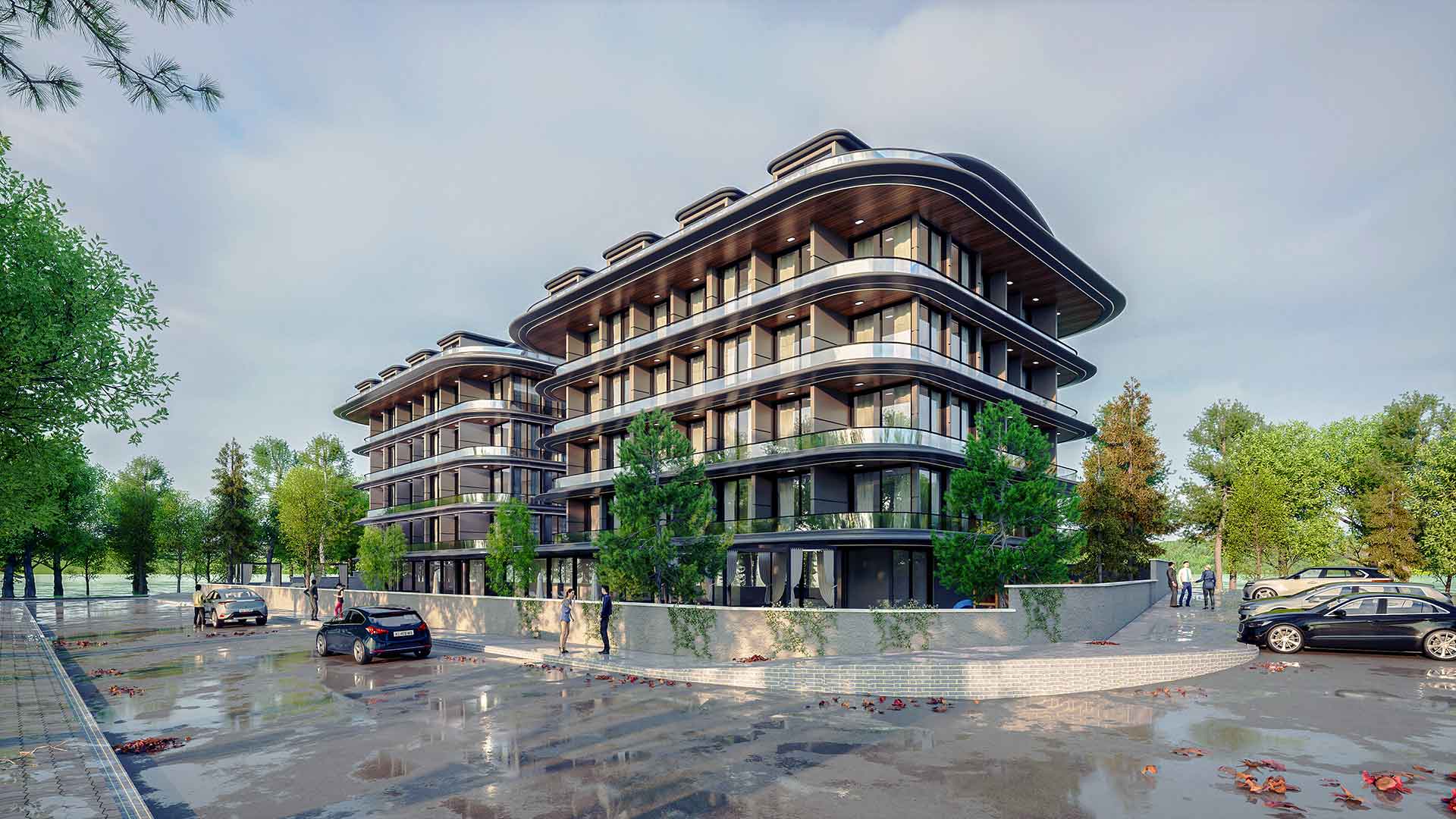
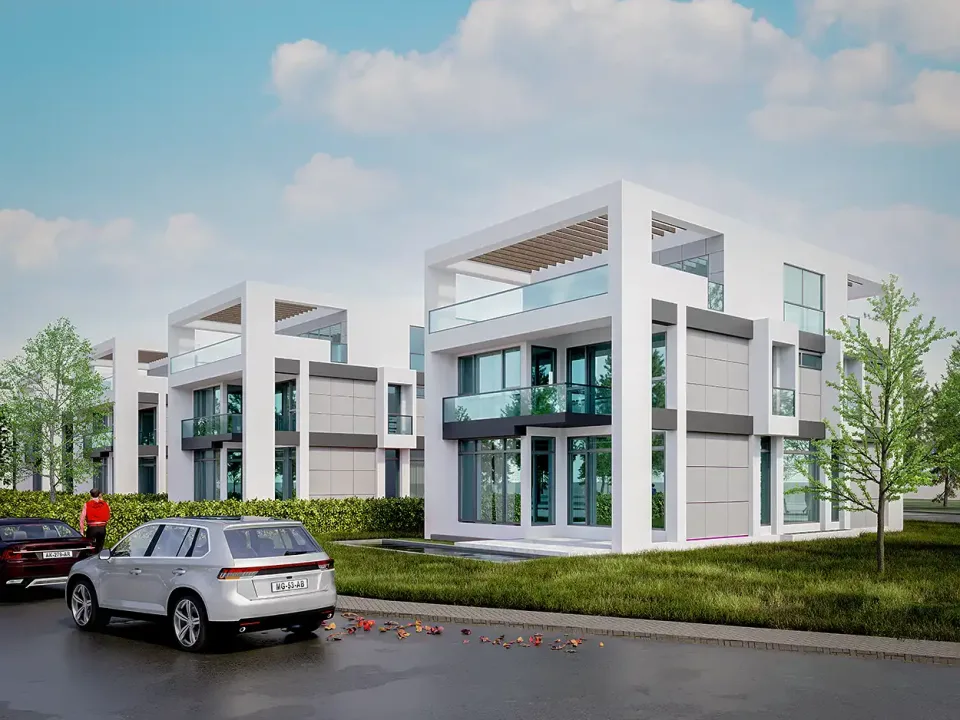
Prints that are held in the hand and viewed up close need high density. Printers usually ask for around 300 DPI for this kind of work. If the image will run as a full page or a spread, base the calculation on the largest use, including the bleed. In printed materials such as sales office catalogs, this is the most visible part of 3D visualization for off-plan sales.

Site hoardings and billboards
Large prints are seen from a distance. Because the eye cannot make out individual pixels from several meters away or more, the density used for this kind of work is usually much lower than for a brochure. There is no single right answer to “how low”, though: viewing distance, printing technique and material all change the outcome. The safest approach is to get the required file dimensions in pixels from the printer or the advertising company before the render is produced.
Another practical method is to open the image at print size on screen and judge it with the real viewing distance in mind. A roadside billboard and a poster at a building entrance may be the same size, yet they are read from very different distances.
Presentation boards and posters
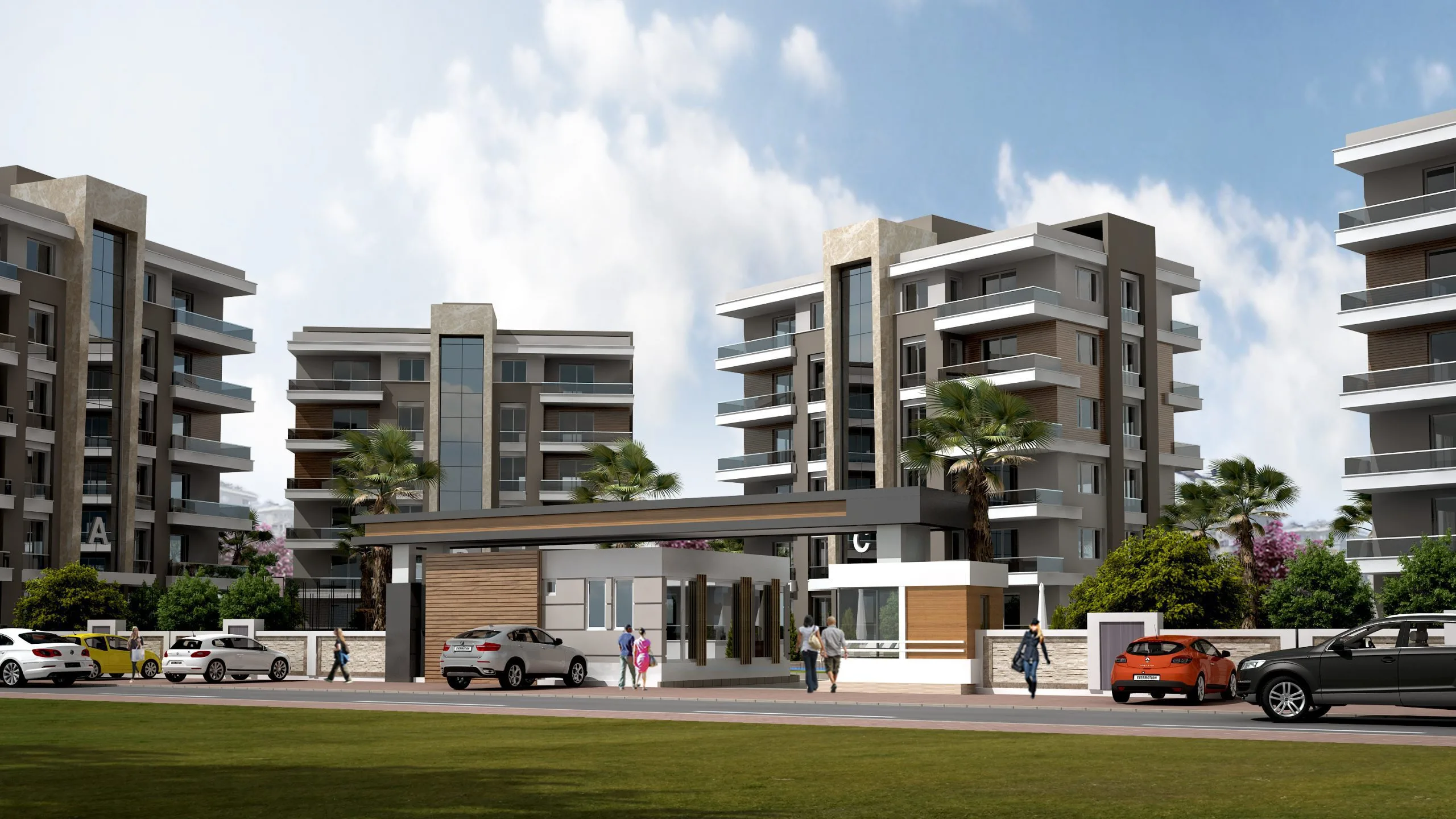
Architecture competition boards, jury panels and exhibition posters are examined both up close and from a distance. Deciding in advance how much of the board the image will cover, and calculating for that area, removes the need to enlarge it later.
If several images will sit side by side on one board, calculate the area each one covers separately. A huge render for a small detail image only means needless waiting, while an undersized file for the main image weakens the very spot the jury looks at first.
Why upscaling is not the answer
A small render can be enlarged later, but that does not bring back lost detail. Fine window frames, railing bars, leaves and textures soften or break up when upscaled. Some smart upscaling tools can improve the result, but in architectural images the safest way to keep straight lines and facade details intact is to render the image at the target size from the start.
Higher resolution also lengthens render time, because there are more pixels to calculate. Deciding once on the largest use for each image avoids unnecessary waiting and the need to render again later. This planning also matters for night scenes, so that light sources and windows print cleanly; see our article on night exterior rendering for more.

What to check when preparing for print
- Aspect ratio: The image proportions should match the print area. Fitting a landscape render onto a portrait poster means either cropping or empty space, so the camera should be set up for that ratio.
- Bleed and safe area: The bleed and margins the printer requires should be built into the composition from the start so that important elements are not cut off.
- Color: Colors on screen can look different in print. Find out the printer’s required color profile and file format in advance and, if possible, order a test print.
- File format: For images going to print, formats with little compression loss are preferred; the printer’s technical specification has the final word.
Frequently asked questions
How should I specify resolution when ordering a render?
It is enough to say where and at what size the image will be used: for example an A4 catalog, a double-page brochure or a site hoarding of a given size. If you know the pixel dimensions the printer wants, pass those on too.
Can a render prepared for the web be used in print?
It can work for small prints, but web images are usually scaled down for screens, so they may fall short in large prints. If print is planned, ask for the high-resolution version from the start.
Is setting DPI to 300 in Photoshop enough?
No. Changing only the DPI tag without changing the pixel count adds no detail; it just reduces the print size. The required pixel count must be calculated from the print size.
Looking for visuals that stay sharp in a brochure and on a billboard alike? Browse our architectural visualization projects or send us your intended uses and print sizes on WhatsApp, and we will get back to you with the right resolution.