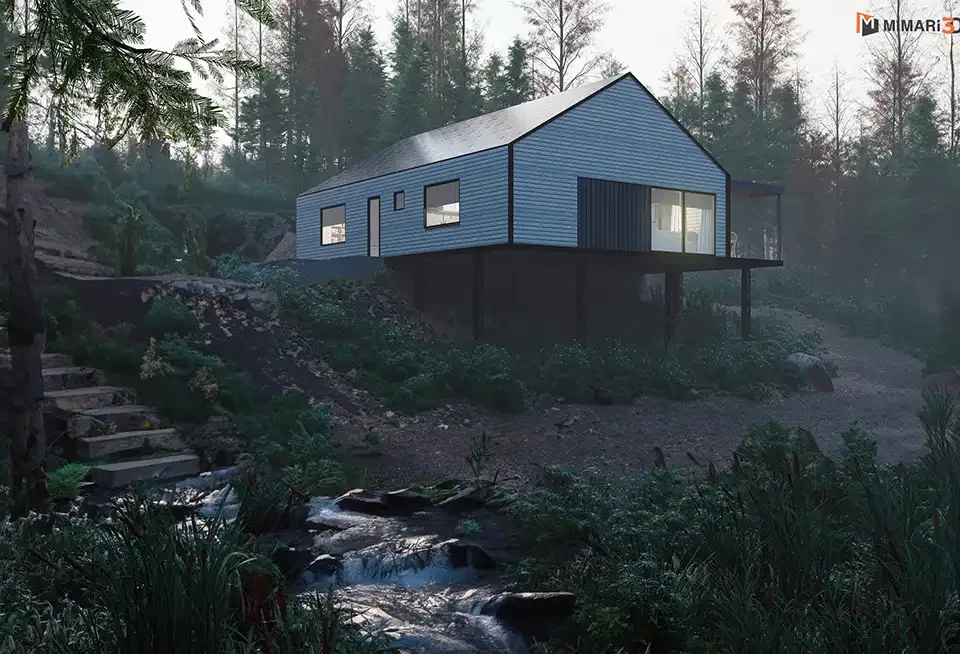
Landscape Rendering With Plants: Trees, Grass and Seasons
How to use trees, shrubs and grass for realistic landscape renders: variety, transition planting, seasons, scattering and performance.

Plants are among the first things that turn a project from a grey mass into a living place. A tree casting shade, a shrub softening an edge, a lawn where children will run: when viewers see these, they imagine not the building but the life they will spend there. Used badly, though, plants make an image look plastic and repetitive. Landscape rendering with plants, set up with the right species, the right density and the right variety, becomes one of the strongest tools of architectural visualization. In this article we explain what to watch for when choosing trees, shrubs, grass and the season.
Why do plants matter so much in landscape rendering?
Plants are not just decoration; they do several jobs in an image at once:
- They tie the building to its surroundings: Trees and shrubs soften the hard line where the structure meets the ground and settle the building onto its plot.
- They add scale and depth: A branch in front, a group of trees in the middle and a grove at the back give the frame depth, layer by layer.
- They tell the story of the light: Sunlight filtering through leaves and leaf shadows on the ground bring the time of day and the weather into the image.
- They show quality of life: In residential and hotel projects, what buyers and investors want to see is often the garden, the shade and the green space.
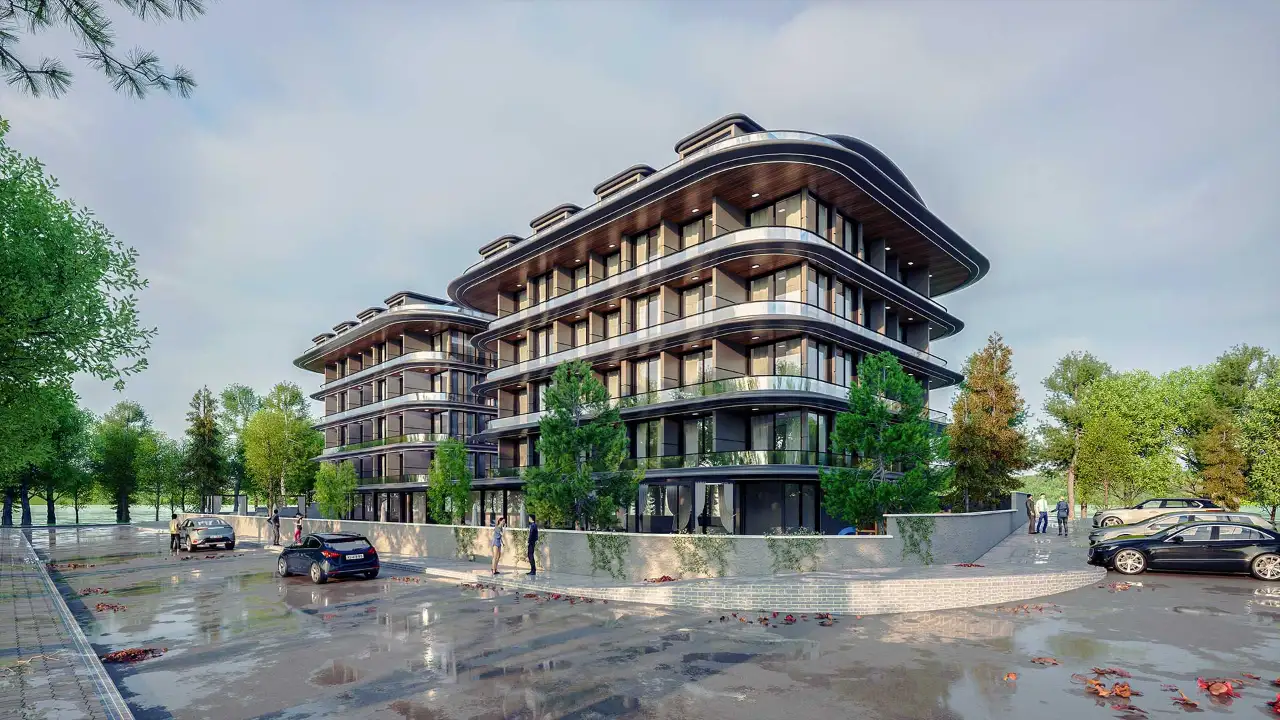
Realistic trees, shrubs and grass
Trees: species, height and variety
In nature, not even two trees of the same species are copies of each other. Repeating the same tree model at the same height and angle over and over gives away immediately that an image is computer-generated. Giving each tree a slightly different height and rotation, mixing several models of the same species and placing trees in natural groups rather than neat rows greatly improves realism. It also matters that species suit the project’s climate; tropical palms in a housing development in a temperate city will not be convincing, however well they are rendered.
Shrubs and transition planting
Gardens with nothing between the trees and the lawn look artificial. Shrubs, ornamental grasses and ground cover create a transition layer at the base of buildings, along paths and in front of walls. This layer makes the boundary between hardscape and softscape feel natural.
Grass: avoid the “mown carpet” effect
A lawn that is completely flat, single-toned and repeats the same pattern looks like a green carpet. Small variations in blade height and direction, patches where the tone changes, slightly longer grass along the edges and lightly worn areas on walking routes bring grass to life. Close to the camera, real three-dimensional grass works best; in distant areas, a good texture is often enough.

Choosing the season and atmosphere
Plants set the season of an image, and that choice should be deliberate. Summer images with dense green foliage and flowering accents look lively and inviting. Autumn creates a warm atmosphere with turning leaves and patches of sky showing through the canopy. In winter scenes, deciduous trees stand bare; evergreen species then keep the colour balance of the image. Whatever season you choose, the light, the sky and the clothing of the people in the scene should tell the same season. Atmospheric choices such as a misty morning or a sunset bring out the silhouettes of plants and add emotion to the image.

Placement and performance
Adding hundreds of trees and thousands of shrubs to a model one by one takes time and makes the file heavy. That is why plants in large areas are usually placed by scattering: you set rules such as density, minimum spacing, height and rotation variation, and the plants spread across the area on their own. Using lighter stand-ins (proxies) for distant plants keeps the scene responsive. When scattering, remember to keep paths, terraces and entrances clear; trees should not hide important facades or the entrance of the building. If you plan to add landscape elements in post-production, our article on Photoshop landscape elements can guide you.
Landscaping and plants in SketchUp: Landscape Studio and Render Fun
If you work in SketchUp, the Landscape Studio extension helps you build terrain, zones, plants, paths and water on the same ground. It offers a Turkish plant database that can be filtered by region, water and sun, rule-based scattering with density, spacing, scale and rotation variation, and automatic proxies; plant counts also come out in the quantities report on their own.
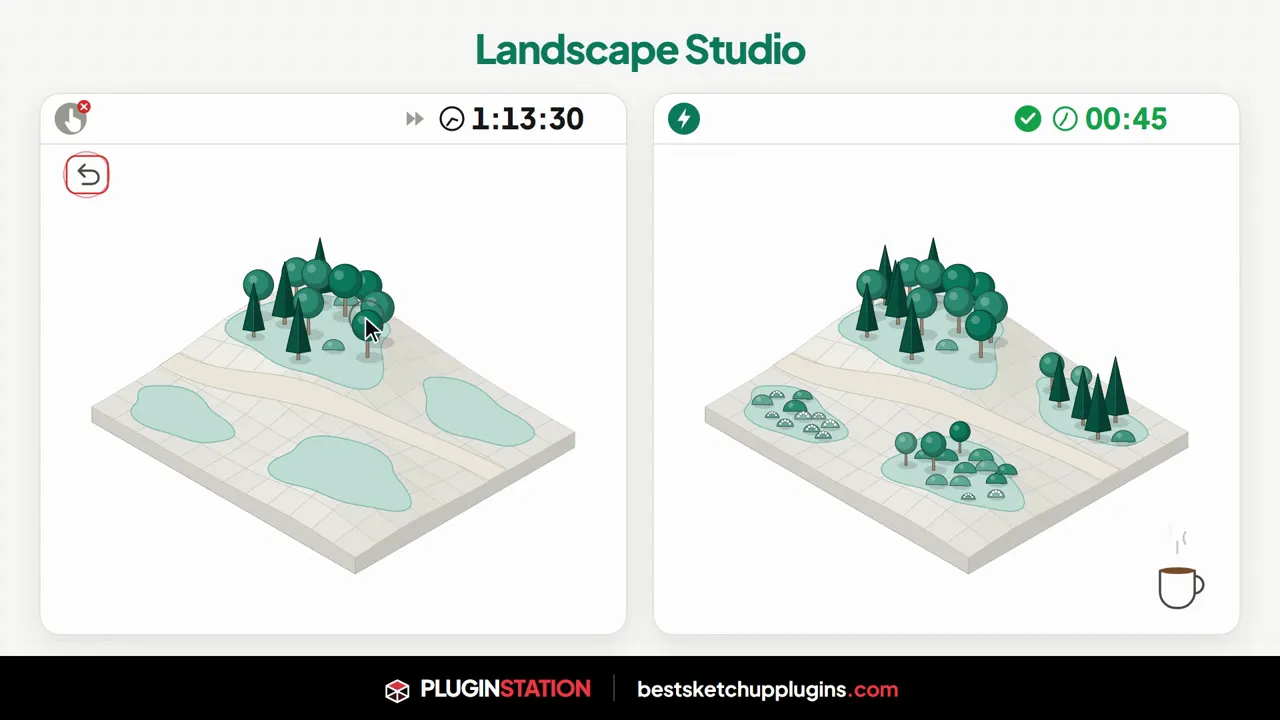
To produce the image, our own Render Fun is free: GPU-based path tracing. Inside SketchUp. Free. Some of its features that help in landscape scenes are “Plants”, “Sun, sky and HDRI”, “Built for large models” and “Render inside SketchUp”.
If you are curious how the surroundings of a building are designed as a whole, read our article on environmental design in 3D architectural projects, and for large-site presentations, our aerial architectural rendering article.
Frequently asked questions
Why do plants look fake in my renders?
The most common reason is repetition: trees lined up with the same model, height and angle, or a flat lawn with a repeating pattern. Adding height and rotation variation, mixing a few different models and adding transition planting usually solves the problem.
Which season should I choose for a landscape render?
Decide based on the sales or presentation goal of the project. Summer or spring is often chosen for a lively, inviting image; but it matters more that the light, sky and figures match the chosen season than which season it is.
Do many trees increase render time?
Plants contain a lot of fine geometry and leaves, so they can make a scene heavy. Using light stand-ins for distant plants, not placing plants where the camera cannot see and adjusting density to what is needed keep the scene manageable.
Looking for photorealistic visuals for your project? Browse our architectural visualization projects or send us your drawings on WhatsApp.