What Are PBR Materials? Albedo, Roughness and Normal Maps
PBR materials explained: albedo, roughness, metallic and normal maps, how they make renders realistic, and the mistakes to avoid.

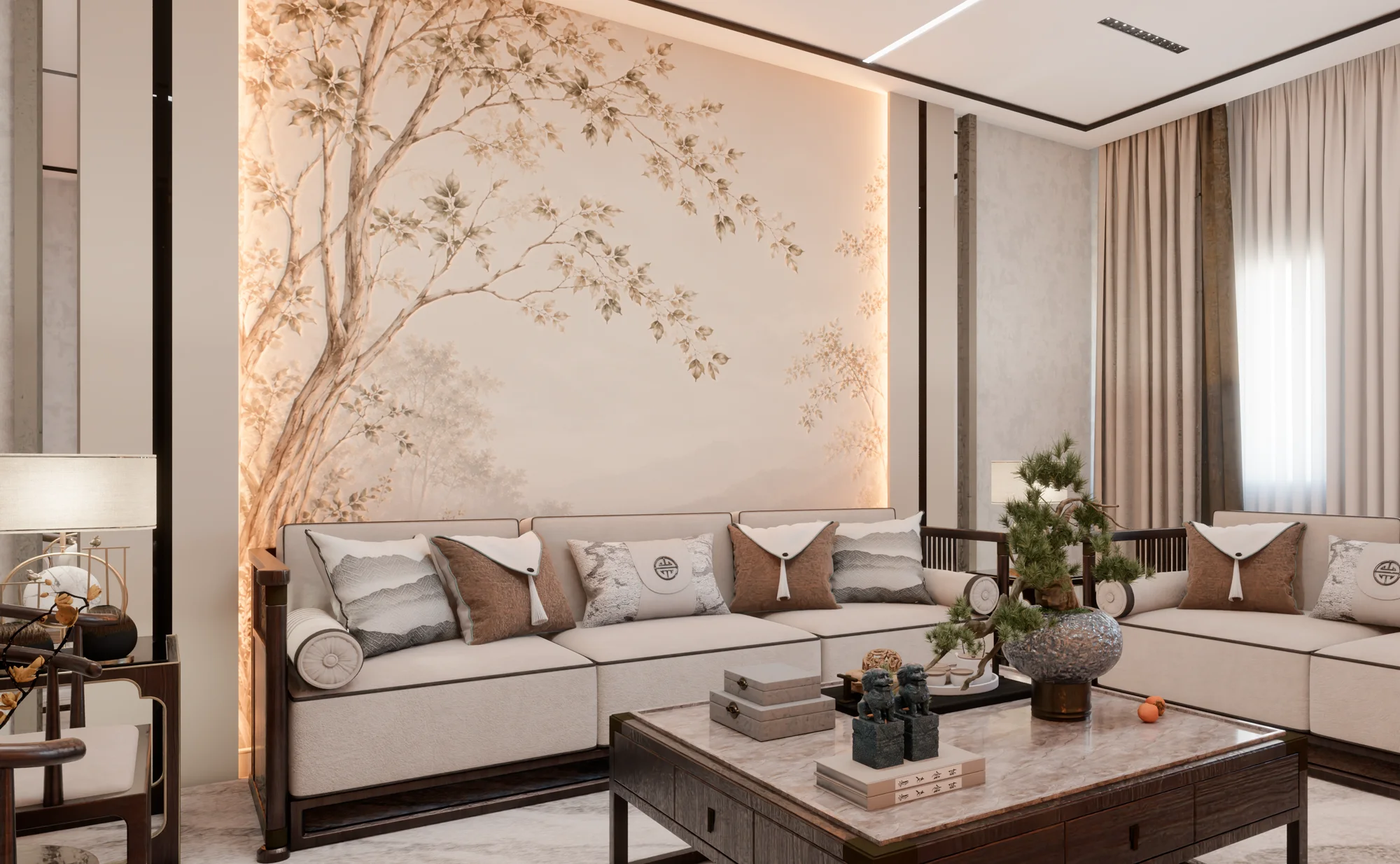
Your model is right and your lighting is good, yet the wood looks like plastic, the marble looks like paint and the metal looks like a flat grey surface. When that happens, the problem is usually the material itself. The answer to what are PBR materials is also the answer to that “why doesn’t it look real” feeling: PBR is a material approach that describes a surface not only by its color but also by its roughness, whether it is metal, and its small bumps and dents, and lets the renderer calculate how light behaves on it according to physical rules. In this article we explain the core PBR maps, how they affect realistic rendering and the most common mistakes.
What are PBR materials?
PBR stands for “physically based rendering.” In the older approach, a material’s shine, reflection and shading were often adjusted by eye, or even painted into the texture. With PBR, the physical properties of the surface are defined separately, and the render engine calculates the light, reflections and shadows. As a result, the same material looks right both in morning sun and under an evening lamp.
Most render engines used in architectural visualization today work this way. Setting names differ between programs, but the core idea is the same: describe a material not by “how it should look” but by “what it is made of.”
The core maps of a PBR material
A PBR material usually consists of several texture maps. Each map carries a single property of the surface.
Albedo (base color)
This is the pure color of the surface, free of lighting. The map should contain no shadows, highlights or reflections; the render engine adds those itself. A texture taken from a photo with a sun patch or deep shadow in it conflicts with the scene’s lighting and makes the material look artificial.
Roughness
Roughness sets how sharp or blurred reflections are. A low value gives mirror-like reflections, a high value gives a matte, soft surface. What separates polished marble from honed marble, or a lacquered cabinet from a matte one, is usually this map. It is arguably the setting that makes the biggest difference in architectural renders; a roughness map with slight variation, instead of one flat value, adds a sense of use and realism to the surface.
Metallic (metalness)
This map says whether the surface is metal, and it is usually either fully on or fully off. Metals get their color from their reflections; non-metal surfaces such as wood, stone, ceramic and fabric get their color from the albedo, with weaker, uncolored reflections. A painted metal railing should be defined as a non-metal, because its top layer is paint.
Normal map
A normal map makes small details such as wood grain, stone pits and plaster texture react to light without modeling extra geometry. It looks purple because its colors carry direction, not brightness. Where stronger depth is needed, for example on a stone wall or paving, a displacement map can also be used; however, it increases render time and memory use.
Helper maps
Ambient occlusion, opacity and emission maps also appear in some materials. Opacity is used for perforated surfaces such as leaves and sheer curtains, and emission for surfaces that give off their own light, such as screens and hidden LED strips.
How PBR contributes to realistic rendering
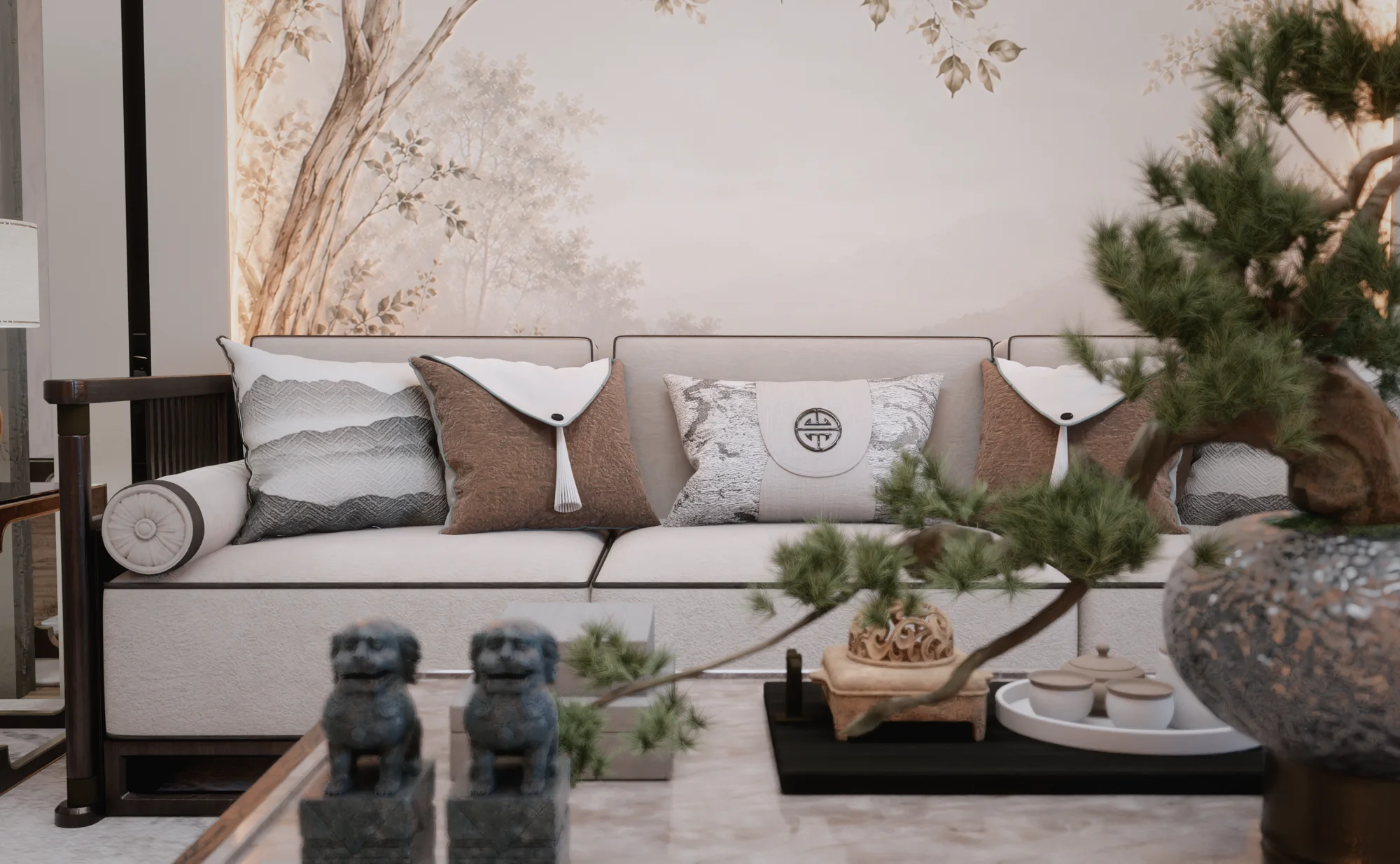
The secret of a realistic render is not a single setting but the match between light and material. Because PBR materials reflect light in a physically consistent way, they bring these benefits:
- Consistency in every light: The same material looks right in day, sunset and night scenes without being readjusted.
- Accurate reflections: Glossy floors, countertops and metal details reflect their surroundings close to reality, while matte surfaces spread light softly.
- Readable material differences: The client can tell a polished surface from a matte one, or solid wood from laminate, in the image; material decisions are made with more confidence.
- Library use: A well-prepared PBR material can be reused across projects.
If you are curious how light bounces between surfaces, our article what is path tracing explains the calculation behind it.

Common PBR mistakes in architectural rendering
- Wrong scale: If floorboards or tile joints are larger or smaller than in reality, the image looks wrong no matter how good the material is. Match the texture to its real-world size.
- Visible tiling: On large walls and floors, a regularly repeating texture stands out. Rotation, slight color variation and larger textures reduce the pattern.
- Shadows in the albedo: Photo textures with shadows and highlights in them clash with the scene’s lighting.
- Everything glossy: In the real world, most surfaces are more matte than we think. Giving every surface strong reflections makes the image look plastic.
- Color space mix-ups: Data maps such as roughness, metallic and normal should be read as data (non-color), not as color information; otherwise the values shift.
We cover textures and materials in SketchUp in our SketchUp texture article, and the general steps toward realism in how to get a realistic render.
Rendering PBR materials in SketchUp: Render Fun
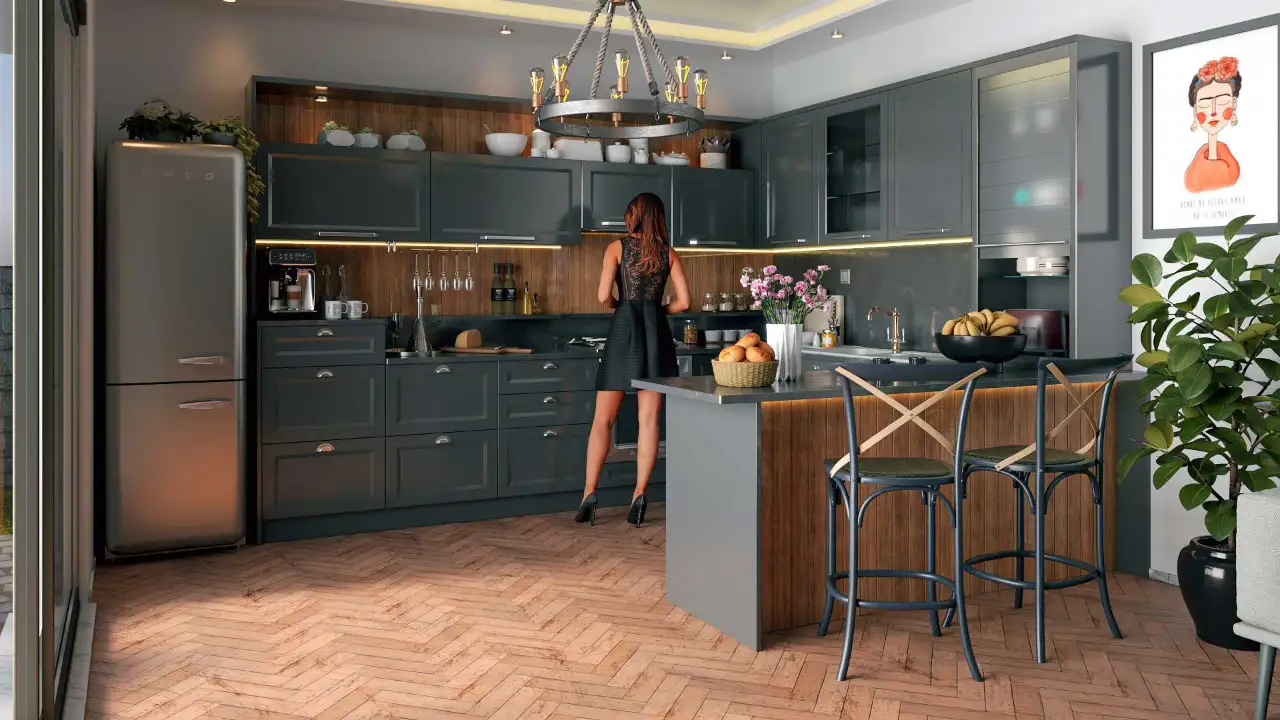
If you use SketchUp, Render Fun, which we develop ourselves, is free: GPU-based path tracing. Inside SketchUp. Free. On the material side, its highlighted features are “Materials in one click” and “Your own library,” alongside “Render inside SketchUp” and “Colour and detail without re-rendering.”
Frequently asked questions
What is the difference between a PBR material and a regular texture?
A regular texture carries only color information. A PBR material also defines properties such as roughness, metalness and surface detail through separate maps, and the render engine uses that information to calculate how light behaves on the surface.
Does every material need all the maps?
No. For a plain painted wall, a color and a roughness value are often enough. On textured surfaces such as wood, stone and leather, normal and roughness maps make a clearly visible difference.
Do PBR materials make renders slower?
The core maps usually add little load. Very high-resolution textures and displacement maps, however, can increase memory use and render time; using smaller textures on surfaces far from the camera is a good habit.
Looking for photorealistic visuals for your project? Browse our architectural visualization projects or send us your drawings on WhatsApp; we will get back to you with scope and timing.